There is a special kind of annoyance that comes from doing a tiny computer task for the fiftieth time.
You type the same reply. You dig through the same folders. You open the same website, launch the same program, and paste the same block of text. None of those jobs is difficult. That is exactly why they are so irritating: each one is too small to deserve your attention, but together they nibble away at your day.
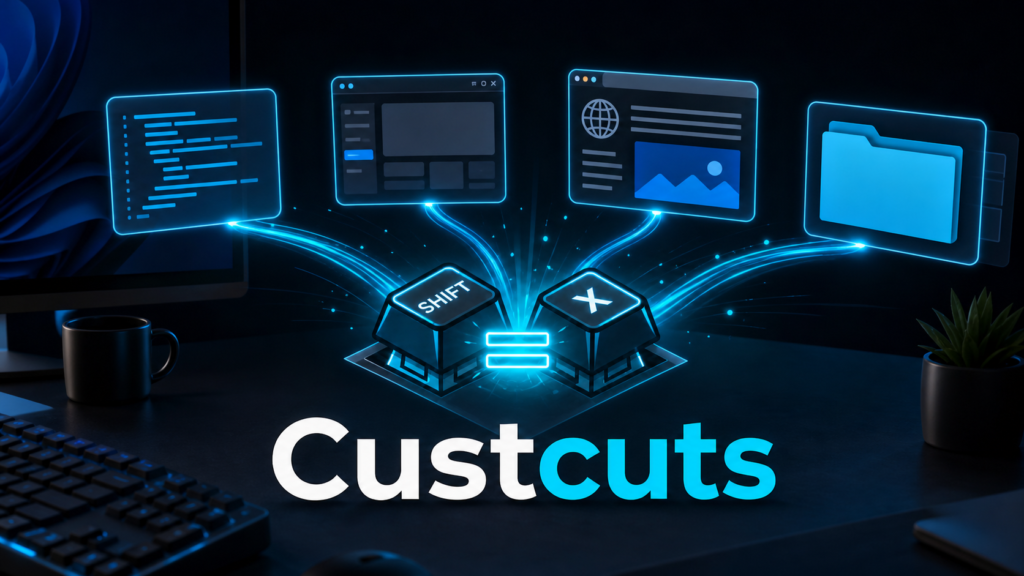
Custcuts is built for that moment. It is a new Windows desktop utility from Jason Ead and Algo Thoughts Systems that lets you connect a custom keyboard combination to an action. Press the shortcut and Custcuts can paste a saved snippet, launch an application, open a web address, or take you directly to a folder.
In plain English, it lets you turn a repeated Windows routine into a reflex.
Start with one shortcut you will actually use
You do not need to be a programmer or an automation expert to understand the appeal. Imagine that you answer customer messages every day. Instead of retyping your standard greeting, you could assign it to a key combination. If your daily work begins with the same dashboard, you could give that URL its own shortcut. If an important project folder is buried six clicks deep, one combination could open it immediately.
That is the beginner-friendly promise of Custcuts: pick something repetitive, give it a shortcut, and stop hunting for it.
The application currently supports four especially practical kinds of action:
- Paste a saved piece of text.
- Launch a Windows executable file.
- Open a web URL.
- Navigate to a folder.
Those four choices cover more territory than they first appear to. A writer might keep signatures, disclaimers, or formatting fragments ready. A creator might jump between an editing program, an upload page, and an asset directory. A small-business owner might open an invoicing portal or paste a frequently used response. A developer might launch a toolchain or jump straight to a working folder.
No grand robotic assistant is required. Sometimes the best automation is simply removing three clicks from a task you perform thirty times.
Why “global” hotkeys matter
Custcuts does not merely create shortcuts that work while its dashboard is in front of you. Its key combinations are designed to work globally across Windows, including while another application is active.
That changes the experience. A shortcut confined to one program is a menu feature. A global shortcut starts to feel like part of the operating system. Your browser can be open, your cursor can be inside a document, or another tool can fill the screen; the assigned combination is still listening.
Underneath the friendly interface, Custcuts uses Windows’ native Win32 hotkey mechanism. Microsoft describes RegisterHotKey as a way to define a system-wide hotkey and have Windows deliver a WM_HOTKEY message when the matching combination is pressed. In other words, the operating system notices the key combination and tells the utility that it is time to act.
That native approach is important for two reasons. First, it helps a shortcut respond consistently outside the application’s own window. Second, it introduces a real-world constraint: two programs may compete for the same combination. Windows also reserves certain shortcuts for the operating system, and Microsoft specifically notes that F12 is reserved for debuggers. A good setup therefore uses memorable combinations without colliding with Windows or another utility.
The clipboard trick—and why restoration matters
Text snippets look simple from the outside: press keys, text appears. The useful engineering detail is what happens in the middle.
To paste saved text into another program, an automation utility commonly needs to work with the Windows clipboard. The clipboard is shared territory. Your browser, document editor, screenshot tool, and automation app may all want access to it, and Microsoft’s Win32 documentation notes that only one window can have the clipboard open at a time.
Custcuts includes a configurable clipboard restore delay. That feature is easy to overlook, but it is the sort of detail that separates a handy demo from a utility meant for daily work. The goal is to place the saved snippet on the clipboard long enough to paste it, then restore what you had copied before. The delay gives different applications time to complete the paste before Custcuts returns the clipboard to its previous state.
For a casual user, the takeaway is simple: your shortcut can paste a reusable response without necessarily destroying the link, image, or paragraph you copied a moment earlier. For a power user, the adjustable delay is a practical response to timing differences between applications and machines.
A dashboard should be convenient—but not casually editable
Once shortcuts can paste text and launch things, configuration deserves protection. Custcuts includes a passcode lock for its dashboard, along with a custom security-question recovery option.
This is not the same as encrypting every secret on a computer, and it should not be treated as a vault for passwords or private keys. It is a guardrail: somebody who sits down at the machine should not be able to casually rewrite an automation, change its destination, or inspect the dashboard without the configured passcode.
The distinction matters. Convenience tools often begin as harmless personal helpers, but they gain power as users add more actions. A shortcut that opens a folder is low risk. A shortcut that launches an executable can do whatever that executable is capable of doing. Good automation hygiene still applies:
- Download software only from a source you trust.
- Review an executable’s path before assigning it.
- Avoid storing sensitive credentials as plain text snippets.
- Choose hotkeys that are deliberate enough to prevent accidental activation.
- Test a new action in a harmless context before relying on it.
Custcuts also offers Windows startup integration, so it can be available after login without a manual launch. That makes global shortcuts feel dependable, but it is still wise to keep the startup list intentional. Every always-running utility should earn its place by saving more attention than it consumes.
From hobbyist convenience to a personal command layer
The interesting part begins when you stop thinking about Custcuts as a list of isolated shortcuts.
Consider a content creator’s day. One hotkey opens the writing folder. Another launches the editor. A third opens the publishing dashboard. A fourth pastes the standard disclosure. Each action is small, but together they form a personal command layer over Windows.
This is where lightweight automation can outperform a complicated “do everything” system. Custcuts keeps the trigger explicit: you press a known combination and one known action follows. There is no model guessing what you meant, no multi-step agent deciding which tool to call, and no conversational ambiguity. That determinism makes the result easy to learn and easy to trust.
It also complements AI rather than competing with it. An AI assistant can help create, summarize, or reason; Custcuts can handle the deterministic handoff around that work. A shortcut might open your preferred AI service, paste a stable prompt template, or take you to the folder where generated assets belong. The creative step remains flexible while the surrounding routine becomes repeatable.
At the expert level, that is the bigger product lesson: not every automation problem needs more intelligence. Some need less friction. The best interface for a predictable task may be a two-key chord and an immediate result.
What is included in the first public release
The first Custcuts GitHub release includes CustcutsSetup_v1.0.exe, a standalone Uninstall_Custcuts.exe, the product artwork, documentation, and license. The interface supports both dark and light modes, and the installer is intended to place the application in the familiar Windows desktop and Start Menu flow.
The project is described as free for personal and educational use under an Open Source Non-Commercial License, with resale or commercial redistribution prohibited without written permission. One transparency note for technical readers: the repository’s current public snapshot contains the documentation, license, artwork, and uninstaller, while the downloadable application itself is distributed as an installer release; application source files are not present in that snapshot.
That means the sensible first experience is also the simplest one: install from the project’s official GitHub release, create one harmless shortcut, confirm that it behaves as expected, and expand only when the utility has earned your confidence.
The shortcut is not the point—the attention is
The easiest way to judge Custcuts is not by counting features. Count interruptions.
How often do you break your concentration to find the same page? How many times do you type a sentence you have already written? How much mental energy goes into remembering where a tool lives?
Custcuts takes those tiny decisions and gives them fixed addresses on your keyboard. A saved snippet becomes a gesture. A buried folder becomes a gesture. A program or website becomes a gesture. The computer starts adapting to your routine instead of asking you to retrace it.
That is a modest idea, and a powerful one. Productivity is not always about doing something spectacularly faster. Sometimes it is about refusing to solve the same tiny problem twice.
Download and learn more: Custcuts on GitHub Technical references: Microsoft RegisterHotKey documentation and Microsoft Clipboard Operations documentation